
Monitor Privacy Screens and Secure Home Office Setup in 2026

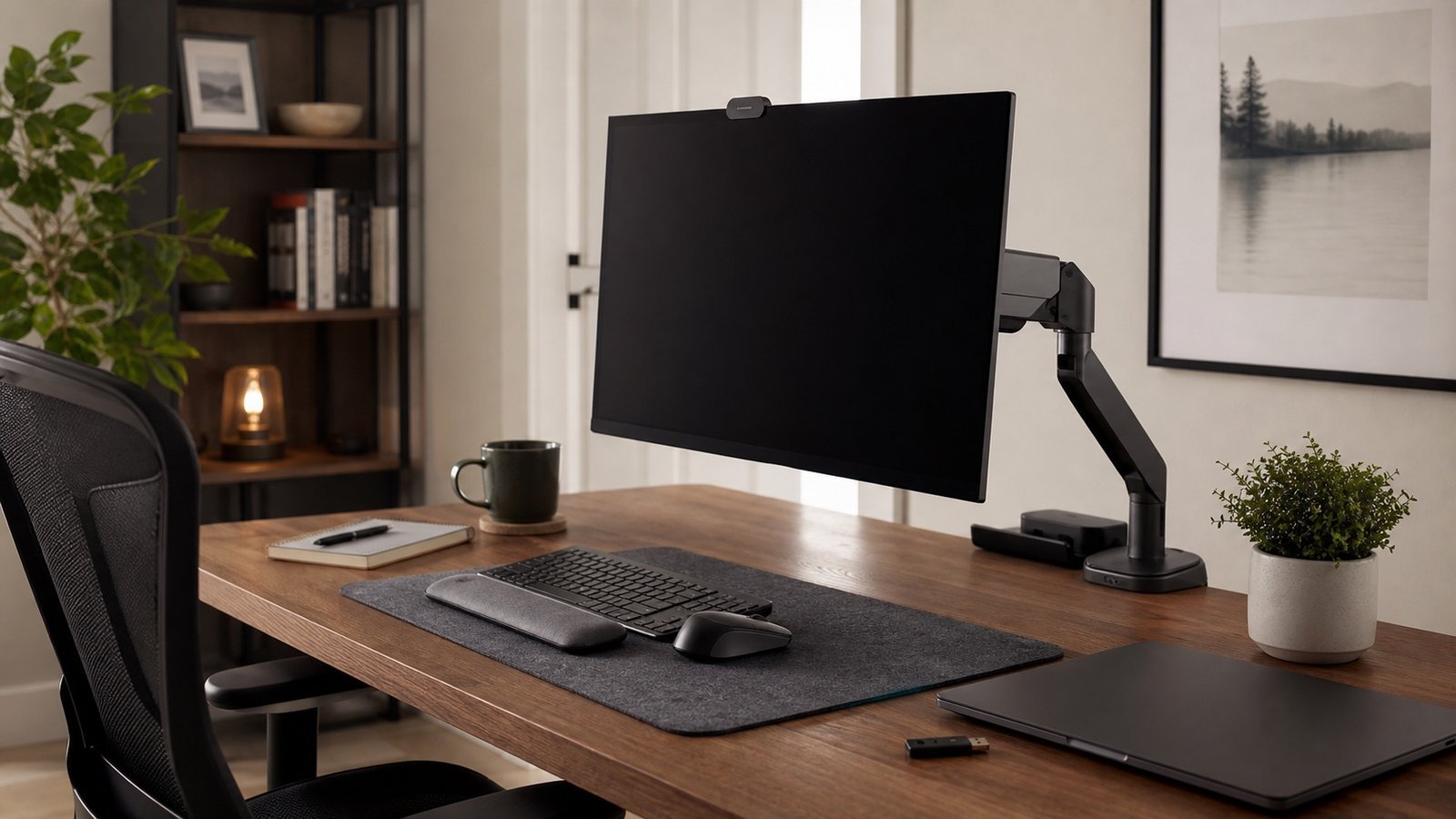
A monitor privacy screen is useful when someone can see your display from the side. A monitor arm is useful when it lets you turn the screen away from windows, doors, cameras, and passers-by. For remote work, the best setup is ergonomic and private: screen at eye level, camera background controlled, documents out of view, and account recovery details stored somewhere safer than a sticky note.
The privacy-first workstation checklist
- Face screens away from windows, doors, hallways, and shared living areas.
- Use a privacy filter if anyone can walk behind or beside you while you work.
- Put the webcam background under your control: blank wall, closed shelf, or neutral corner.
- Keep paper bills, ID documents, notebooks, and family calendars out of camera view.
- Use a password manager instead of desk notes for passwords and recovery codes.
Privacy filter vs monitor arm
| Tool | Use it when | Benefit | Limit |
|---|---|---|---|
| Privacy filter | People sit or walk beside your screen | Narrows side viewing angles | Can darken the display |
| Monitor arm | Your desk faces a window or shared room | Lets you rotate and lift the screen | Needs desk compatibility |
| Laptop stand | You work from a laptop for long sessions | Improves posture and camera angle | Usually needs external keyboard and mouse |
Map the sightlines before buying gear
Do a five-minute audit from the places another person could stand: doorway, hallway, window, sofa behind the desk, shared kitchen table, and the angle seen by a webcam. If you can read email subjects, banking pages, client names, school portals, or recovery codes from any of those places, fix the layout first. A monitor privacy filter helps side viewing, but it cannot fix a screen that faces a doorway straight on.
For video calls, check the background as carefully as the screen. Mail, prescription labels, a family calendar, a child’s school name, a visible router password label, or a whiteboard can leak more than the call itself. A blank wall, a closed cabinet, or a consistent neutral corner beats a software blur that sometimes fails around edges.
Secure workstation zones
Think in zones. The screen zone should not be readable from normal household traffic. The paper zone should hold only what you are actively using. The recovery zone – password-manager recovery codes, backup keys, safe combinations, and identity documents – should not live on the desk at all. Put recovery material in a document safe or another controlled place where another trusted adult can find it in an emergency.
A monitor arm is useful when it lets you rotate the screen away from a window, lift it above paper clutter, or quickly change the angle before a call. A privacy filter is useful when the room cannot change. A laptop stand is useful when it improves both posture and camera angle, but it usually needs an external keyboard and mouse to avoid creating a different ergonomic problem.
What to check before buying a privacy screen
- Exact monitor size and aspect ratio, not just the diagonal measurement.
- Glossy vs matte finish: glossy can preserve clarity, matte can reduce glare.
- Attachment method: magnetic, slide tabs, adhesive strips, or built-in laptop frame.
- Viewing-angle claim: narrower is more private but can make collaboration harder.
- Brightness impact: most filters make the display darker, so check whether your monitor has enough brightness headroom.
What to buy first
Start with the layout. If a small desk move solves the privacy problem, do that before buying anything. If the room cannot change, buy the tool that solves the observed risk: a privacy filter for shoulder-surfing, a monitor arm for screen angle, or a laptop stand for camera and posture.
Security habits that matter more than gear
Lock the screen when you step away, keep work and family accounts separate, use two-factor authentication, avoid shared passwords, and do sensitive admin work from your own network rather than public Wi-Fi.
Shared-home rules
In a shared home, privacy is partly layout and partly habit. Agree which desk surfaces can hold work documents, where bills and identity papers go, and when screens should be locked. If children use the same room for homework or gaming, create a separate profile and keep work accounts out of browser autofill on shared devices.
Remote-work calls
Before important calls, do a camera sweep. Check reflections in windows, mirrors, framed pictures, and glossy monitors. Close tabs with client names, school portals, medical details, or bank alerts. If you use a virtual background, still tidy the real background; blur and replacement backgrounds fail when lighting changes or someone walks behind you.
The best workstation is not the most expensive one. It is the one that keeps sensitive work boring: no visible passwords, no paperwork in frame, no screen facing traffic, and no recovery details stuck to the monitor.
Temporary workspaces
Kitchen tables, guest rooms, and travel desks need a simpler rule: clear the surface before and after work. Do not leave papers, passcodes, or recovery notes in a shared room overnight. If the space cannot be made private, do sensitive account work later from a controlled room and network.
Sources and methodology
By The Connected Living Guide Team. This guide is based on home-office privacy risks, product-documentation review, and setup ergonomics, not source-backed claims audit. How we research.
Last editorial source pass: June 15, 2026.