
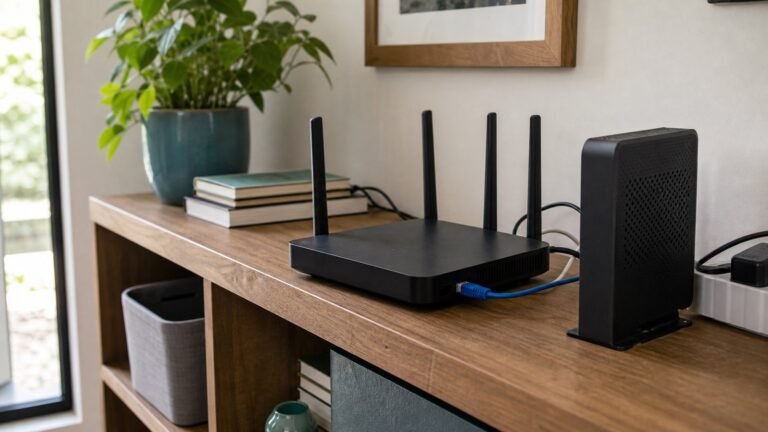
Home Wi-Fi Security Setup: The 60-Minute Router Checklist

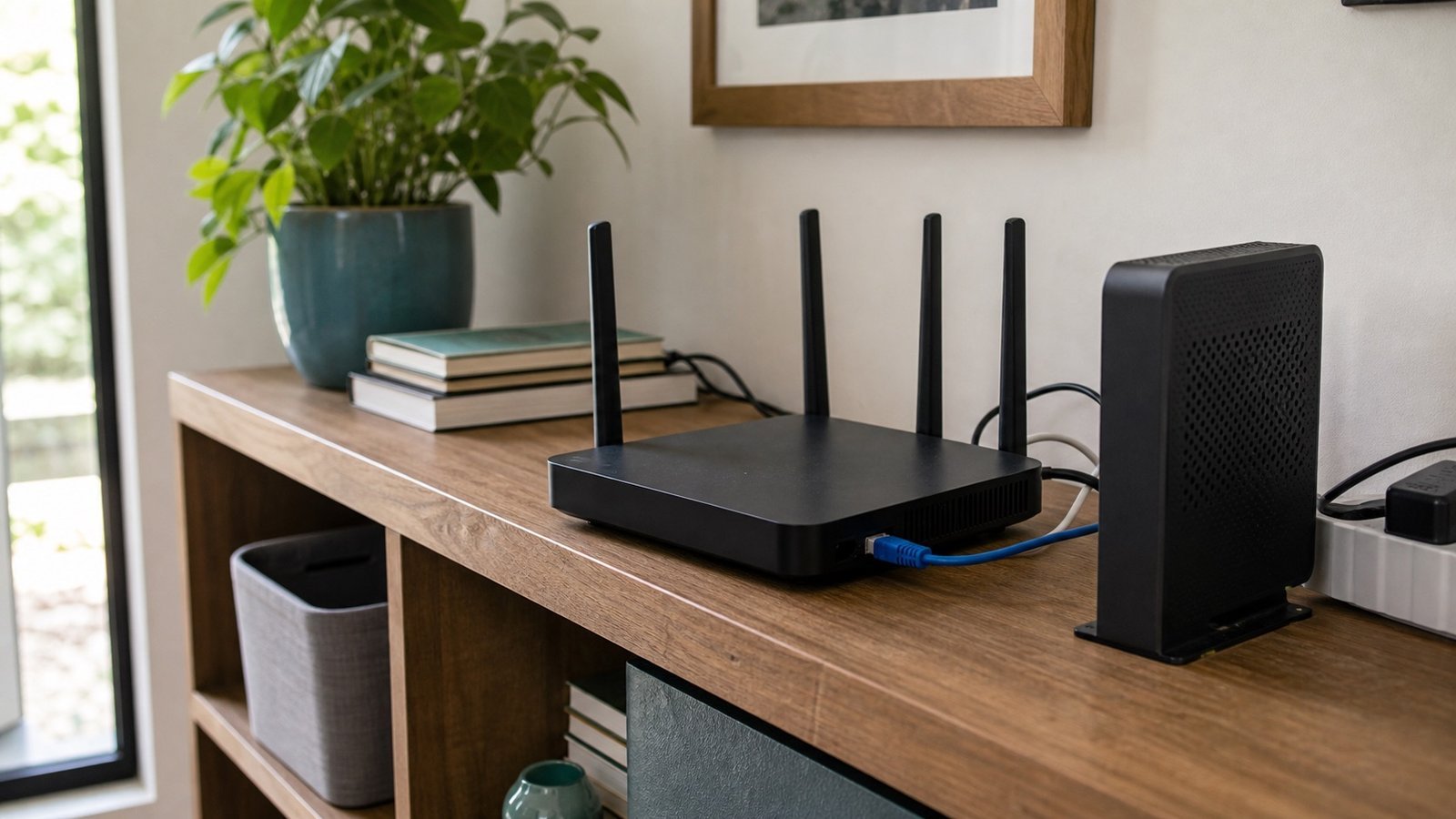
Secure the router before adding cameras, locks, plugs, lights, speakers, or parental-control devices. Change the router admin password, use WPA2 or WPA3, update firmware, split guest and smart-device traffic where possible, and keep a written device inventory.
The 60-minute checklist
- Log in to the router admin page. Use the app or the address on the router label. Change the admin password first.
- Update firmware. Turn on automatic updates if your router supports them.
- Use WPA3 or WPA2. Avoid open networks and outdated security modes.
- Rename the network without personal details. Do not use your surname, address, or apartment number.
- Create a guest network. Use it for visitors and, where practical, smart-home devices.
- Remove unknown devices. Review the connected-device list and rename anything you recognize.
- Protect router, ISP, Apple, Google, Amazon, and camera accounts with unique passwords and two-factor authentication.
Smart-home devices need their own rules
Cameras, locks, plugs, and light bridges are small computers on your network. Before buying more devices, compare secure home automation systems so cameras, locks, plugs, and lights follow one maintainable platform plan. They need firmware updates, strong account security, and a reason to be online. If a device does not need remote access, disable it. If a device has a guest-network or IoT-network option, use it.
Guest network vs separate IoT network
A guest network is the simple option: visitors and lower-trust devices get internet without full access to your household devices. A separate IoT network is better if your router supports it cleanly, but do not break essential features just to chase perfection. The practical goal is reducing what a compromised device can reach.
Router settings that are usually worth checking
- Remote administration off unless you know you need it.
- WPS off if your router still exposes it.
- Automatic firmware updates on.
- UPnP reviewed, especially in homes with gaming consoles, cameras, and NAS devices.
- DNS settings unchanged unless you intentionally use a filtering or privacy DNS provider.
What to do before installing cameras or locks
Set up the network first. Then add the camera or lock app with a unique password, turn on two-factor authentication, update the device, and record where recovery codes are stored. A smart lock or indoor camera account should be treated like a financial account.
What to inventory
A secure home network starts with knowing what is on it. Open the router app or admin page and rename devices you recognize: phones, laptops, tablets, printers, cameras, locks, plugs, light bridges, speakers, TVs, game consoles, and work devices. Unknown devices are easier to investigate when the known ones have readable names.
Keep a simple note with the router model, admin login location, Wi-Fi network names, guest-network purpose, and the date firmware was last checked. Do not write down the Wi-Fi password where visitors can see it. If you need to share guest access, use the guest network rather than the main network.
Risk by device type
| Device | Why it matters | First rule |
|---|---|---|
| Indoor cameras | They can see private spaces | Unique account password and 2FA |
| Smart locks | The app can control physical entry | Protect the lock account like a bank login |
| Plugs and lights | They add cheap cloud accounts and firmware risk | Buy fewer brands and update firmware |
| Printers and storage | They may expose documents or files on the network | Disable features you do not use |
When to replace the router
Replace the router if it no longer receives firmware updates, cannot run WPA2 or WPA3, cannot separate guest traffic, or is too old to manage the number of devices in the home. You do not need enterprise networking gear for an ordinary family home, but you do need a router that is still maintained and that makes updates visible.
Do the boring work before adding more devices. A new camera on an old router with a weak admin password is not a security upgrade. A secured router, fewer unknown devices, and clean account recovery will protect more than another gadget.
Lighting is a common first smart-home category, but no-hub smart bulbs can still require app accounts, 2.4 GHz Wi-Fi, and cloud setup.
A VPN can help protect traffic on public, hotel, airport, cafe, or other shared Wi-Fi. It does not stop phishing, data breaches, weak passwords, account takeover, or scams by itself. Use it as a privacy layer when the network is not yours, then keep the router, passwords, and two-factor authentication work separate.
Where a VPN fits in a home security setup
Secure the home router first. A VPN is most useful for devices that leave the house or for family members who sign in to sensitive accounts on shared networks. It is not a fix for old firmware, a default router admin password, a reused camera-app password, or a smart device that no longer gets updates.
Ongoing maintenance
Once the 60-minute setup is done, set a quarterly reminder. Check firmware, remove devices you no longer own, rotate the guest password if it has been widely shared, and confirm the router admin password is still stored safely. Review camera, lock, and smart-home app accounts at the same time.
If something breaks after a router change, resist the temptation to turn off security features permanently. Fix the device, update it, or replace it. A secure network that everyone bypasses is not secure; a network that is understandable enough to maintain is the target.
A secure router is the foundation, but laptops, phones, and tablets still need device-level protection. Bitdefender Total Security is relevant if you want antivirus, scam and breach signals, password management, and device protection in one consumer suite. It does not replace router updates, WPA2/WPA3, guest networks, or the NordVPN public-Wi-Fi layer above.
Some links on this page are affiliate links. Commissions never decide our recommendations. Full disclosure.
Sources and methodology
By The Connected Living Guide Team. This guide is research-based and does not claim source-backed claims audit.
Last editorial source pass: June 15, 2026.